
If you have ever opened your Balance Sheet or Chart of Accounts in ABSS (formerly MYOB) and spotted a line item called Historical Balancing, you might have wondered: What is this account, and why does it have a balance?
Don’t panic, seeing an amount here doesn’t mean your data is corrupted. In fact, it is a built-in safety net designed to keep your books balanced while you set up your accounting system.
Here is everything you need to know about what the Historical Balancing Account is, why it holds a balance, and how to clear it back to zero.
What is the Historical Balancing Account?
In double-entry bookkeeping, the fundamental accounting equation must always hold true:
Assets = Liabilities + Equity
When you first set up ABSS, you enter the opening balances for all your accounts as of your software conversion date. If the total assets you enter do not perfectly equal your total liabilities plus owner’s equity, ABSS creates a temporary placeholder.
That placeholder is an Equity account named Historical Balancing. It automatically absorbs any unallocated difference so that your Balance Sheet stays mathematically balanced.
Key Takeaway: The Historical Balancing Account is ABSS’s “holding bucket” for out-of-balance opening entries. Its ideal target balance is $0.00.
Why Does Your Historical Balancing Account Have a Balance?
A non-zero balance usually comes down to one of three common causes:
1. Incomplete or Inaccurate Opening Balances
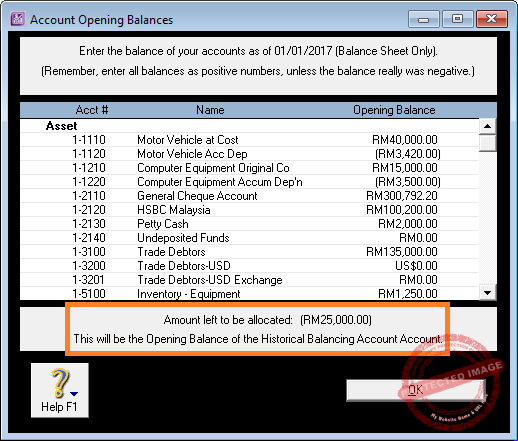
When setting up your file under Setup, Balances, Account Opening Balances, you might see a field at the bottom labeled Amount left to be allocated.
- If this number is anything other than zero when you save, ABSS dumps that exact amount into the Historical Balancing Account.
- Common mistakes include forgetting to entering a negative figure, transposing an amount, for example entering 1090 instead of 1900.
2. Accidental Transactions Posted to the Account
Though rare, users sometimes manually select the “Historical Balancing Account” in general journal entries, spend/receive money transactions, or bill payments. Doing this pushes a live transaction directly into what should be a static opening account.
3. A System Recalculation Glitch
Occasionally, following a software upgrade or file migration, ABSS may fail to auto-recalculate the historical balance correctly, displaying a phantom balance on the Balance Sheet.
How to Fix and Clear the Historical Balancing Account
To get your Historical Balancing Account back to zero, follow these step-by-step troubleshooting methods:
Step 1: Check Opening Balances Against Your Trial Balance
- Obtain a finalized Trial Balance or Balance Sheet from your accountant as of your conversion date.
- Go to Setup, Balances, Account Opening Balances in ABSS.
- Carefully cross-check each account balance in ABSS against your accountant’s statement.
- Adjust any missing or incorrect figures until the Amount left to be allocated field at the bottom displays $0.00.
Step 2: Search for Direct Transactions
If your opening balances are correct but the account still shows a figure:
- Open Find Transactions and search for the Historical Balancing Account.
- Set the date range back as far as possible.
- If you find any manual journal entries posted directly to this account, reallocate them to the appropriate asset, liability, or expense account.
Step 3: Perform a System Refresh (For Glitches)
If everything checks out but ABSS still shows a phantom balance, force the system to recalculate:
- Go to Setup, Balances, Account Opening Balances.
- Find any account with a $0.00 balance.
- Temporarily change its opening balance to $1.00 and click OK.
- Re-open the same screen, change that account back to $0.00, and click OK again.
This simple toggle forces ABSS to re-sum the opening balance table and usually clears stuck amounts.
Final Words
Seeing an amount in your Historical Balancing Account is simply ABSS’s way of signaling that your starting balances need a quick audit. By comparing your opening balances with your accountant’s year-end reports, you can clear the balance and ensure your financial reporting starts on a solid foundation.